The Privacy Settings Worth Changing on Every Device You Own
Location access is one of the first privacy settings worth checking on any phone, tablet, or computer. Many apps have legitimate reasons to know where you are. Navigation apps need your location to provide directions, ride-sharing services need it to find your pickup point, and weather apps may use it to show a local forecast.
By Harlem Boyer on October 3, 2026
Getty Images
Review which apps can access your location
Location access is one of the first privacy settings worth checking on any phone, tablet, or computer. Many apps have legitimate reasons to know where you are. Navigation apps need your location to provide directions, ride-sharing services need it to find your pickup point, and weather apps may use it to show a local forecast. The problem is that apps can sometimes retain broader permissions than they actually need. Go through your device’s privacy settings and review location permissions individually. If an app doesn’t need your location to perform its main function, consider disabling access. For apps that occasionally need it, choose options such as “While Using the App” rather than allowing continuous background access where your operating system provides that choice. You may also be able to disable precise location and provide only an approximate area. This doesn’t mean location sharing is inherently dangerous; it simply reduces unnecessary access. A flashlight, calculator, or basic game, for example, probably doesn’t need to know exactly where you are. Reviewing these permissions every few months is worthwhile because new apps accumulate surprisingly quickly.
Limit unnecessary access to your camera, microphone, and contacts
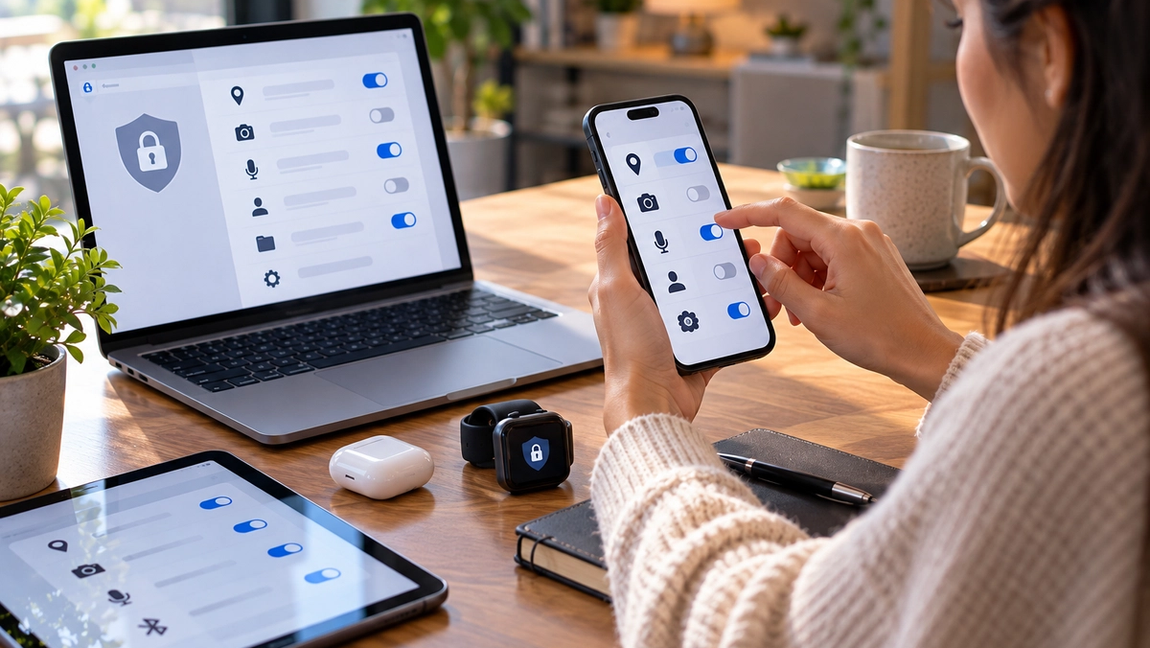
Modern devices contain an extraordinary amount of personal information, and apps frequently request access to it. Camera and microphone permissions are necessary for video calls, voice messages, scanning documents, and many other useful features. Contact access makes sense for messaging or communication apps. But those permissions shouldn’t automatically remain available to every application that has requested them. Open the privacy or permissions section of your device and review which apps can access your camera, microphone, photos, contacts, Bluetooth connections, and local network. Remove permissions that aren’t clearly connected to how you use the app. Photo permissions deserve particular attention because many operating systems allow you to give an application access only to selected photos rather than your entire library. Pay attention to privacy indicators as well. Phones and computers increasingly display an icon or colored indicator when the camera or microphone is active. If one appears unexpectedly, check which application is responsible. Permission management isn’t about disabling useful features. It’s about applying a simple rule: an app should have access to personal information only when that access is necessary for something you actually want it to do.
Reduce ad tracking and unnecessary data collection
Another setting worth reviewing is how your devices and apps use information for advertising, personalization, diagnostics, and analytics. Technology companies may collect information about how people interact with their products to improve features, measure performance, personalize experiences, or serve advertising. Your device may provide controls that allow you to limit some of this collection. Look for settings related to personalized advertising, tracking, analytics, diagnostics, and usage data. Browsers deserve special attention because so much online activity passes through them. Review third-party cookie settings, site permissions, saved passwords, browsing data, and any privacy protection features your browser provides. You should also review individual apps rather than relying exclusively on device-wide settings, since services may have their own privacy controls inside their accounts. The exact options vary considerably between operating systems and applications, and disabling personalization can sometimes make recommendations or advertising less relevant. The objective isn’t necessarily to turn off every form of data collection. It’s to understand which information you’re sharing and decide whether the benefit you receive in return is worth it.
Strengthen the settings protecting your accounts and devices
Privacy settings matter much less if someone can easily access your device or accounts. Start with the basics: use a strong screen lock, keep automatic locking enabled, and avoid simple PINs that someone could easily guess. Where available, biometrics such as fingerprint or facial recognition can make strong device security easier to use consistently. Your online accounts deserve similar protection. Use unique passwords for important accounts and consider a reputable password manager so you don’t have to remember every password yourself. Enable multi-factor authentication on email, financial, social media, cloud storage, and other sensitive accounts whenever it’s available, preferably using stronger authentication methods when supported. It’s also worth checking what appears on your lock screen. Message previews, verification codes, calendar events, and other notifications can reveal information even while your phone is locked, so consider hiding sensitive notification content. Finally, keep your operating system, browser, and apps updated. Privacy isn’t controlled by one magical switch hidden in a settings menu. It comes from reducing unnecessary permissions, limiting unwanted tracking, protecting account access, and occasionally checking whether your settings still match how you actually use your devices.